I wasn’t able to do this yesterday so doing this a day late! Today is about researching what assistive technologies are.
Assistive technologies (AT) refers to equipments, devices or programs that can help improve or maintain someone’s life.
AT ensures that people with disabilities can perform their routines on a day-to-day basis.
Example of AT ranges from wheelchair, screen readers, braille, hearing aids, closed captioning to name a few.
I was researching about braille and stumbled upon this one company http://innovisiontech.co. They have created the world’s most affordable digital braille which you can use both as a standalone braille and also connected to your digital devices.
Day 8 was to read a book about accessibility. I read the first chapter of Web Accessibility: Web Standards and Regulatory Compliance which you can find here http://uiaccess.com/understanding.html
I made some notes which hopefully some of you might find useful too (please open the image on a new tab so you can zoom etc.)
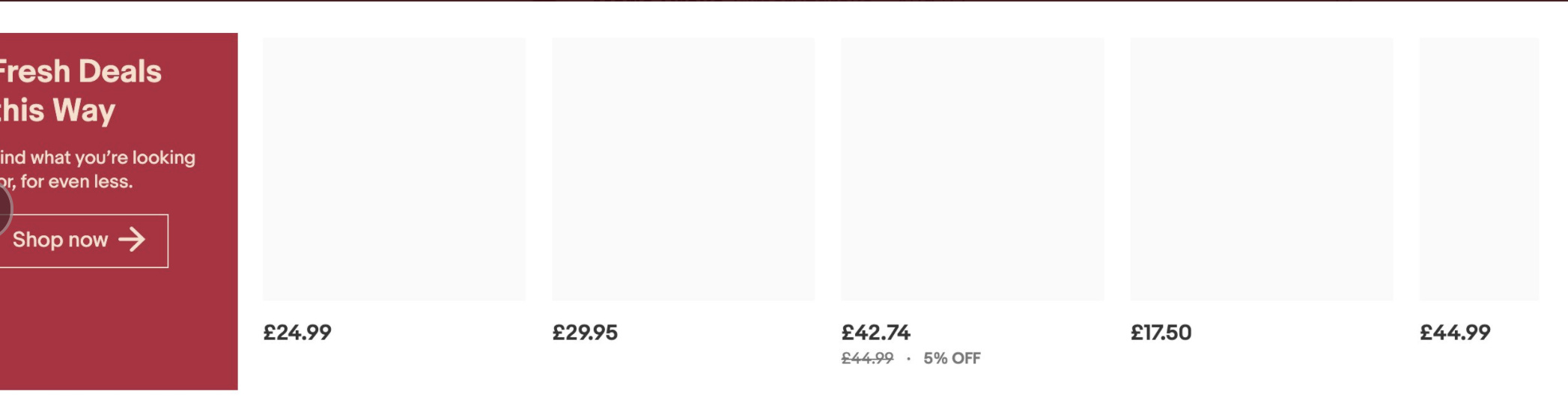
Some websites such as Ebay and Pinterest, I couldn’t understand what I’m seeing because of the lack of appropriate alt texts. It goes to show that alt texts are really useful for accessibility.
Day 10 - Test with a screen reader and share one useful tip
I’m going to actively make my blog posts accessible going forwards because when I was reading my old blog posts, some of the images doesn’t have alt text so it was hard to understand. If your images convey information that you want readers to know, then it’s best practice to add alt text. If it’s just for decorative purposes, you want this to be skipped by screen readers and this can be done by adding an empty alt text. If there is no alt text attribute, the filename of the image will be read and this wouldn’t make sense to people using screen readers.
Day 11 - turn your screen off and rely on a screen reader.
I enabled VoiceOver on my iPhone and closed my eyes to try to use my phone and took me a while to go to the app that I want. The gestures are handy but takes some time getting used to.
Day 12 - read an article about accessibility and share it with someone
This article by @RightSaidJames about web accessibility guidelines is very insightful and a great read overall. If you haven’t read it yet, please do!
Day 13 - share a video about accessibility.
Here’s a video about what is web accessibility in 60 seconds
Day 14 - Find a problem that might affect someone who is deaf.
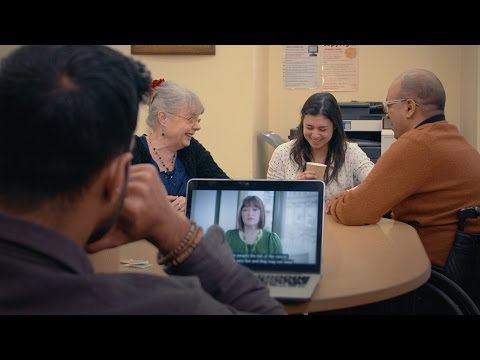
If you have audios or videos embedded on your website but it doesn’t have captions/subtitles or transcripts, then this makes the content inaccessible to people who have hearing disabilities. Here’s a great video about it.
Sushuma and @yogitakl have just taken on the accessibility challenge this month inspired by @suman.bala
From Yogita
Day 5 of #30DaysOfTesting -Read the 12 guidelines of WCAG 2.0 and write a short post on one of them.
Day 6 of #30DaysOfTesting#accessibility#MinistryoftestingLearn about assistive technologies, and share one you liked (hardware)
Day 7 of#30DaysTesting #accessibility#MinistryOfTesting
Unplug your mouse, leave the touch pad alone, and navigate using the keyboard. https://t.co/2mBjdNzLH9
Hi Heather, nice to meet you and thanks for supporting us. Recently we started learning testing skills and exploring different types of testing. It’s really interesting
Challenging field.
Had gone through your informative messages are really helping us.
Thanks
Shushuma